
Tours And Their Use Cases
Introduction To Tours and Their Use Cases
So you've decided to use Product Fruits for your user onboarding. Amazing!
You've probably already logged into your workspace, maybe clicked around a little, but now you're ready to start creating. But what is a Product Fruits tour and how can you use them to enhance your onboarding?
Put simply: tours are a tool used to show users around your application.
To get a better understanding of all that Product Fruits tours have to offer, we've compiled some of the most common use-case examples here for you to try! These are short tour examples that you can actually try out yourself to see if they would be an effective method for your own application.
Tours and Their Use Cases
Onboarding New Users
The very first time a user logs into your application is a crucial moment to make sure that your users understand your application and the goals they can achieve when they use it. Tours can aid and even enhance users' first-time experience in your application and guide them to understand it more effectively. This allows them to explore by themselves (guided by a tour!) and empowers them with the knowledge to succeed and get everything they can from your application.
When creating tours for new users, you want to make sure that you're showing them the content that you've tailored specifically for them, as well as making sure they aren't overloaded with content.
Here's an example of an effective welcome tour:
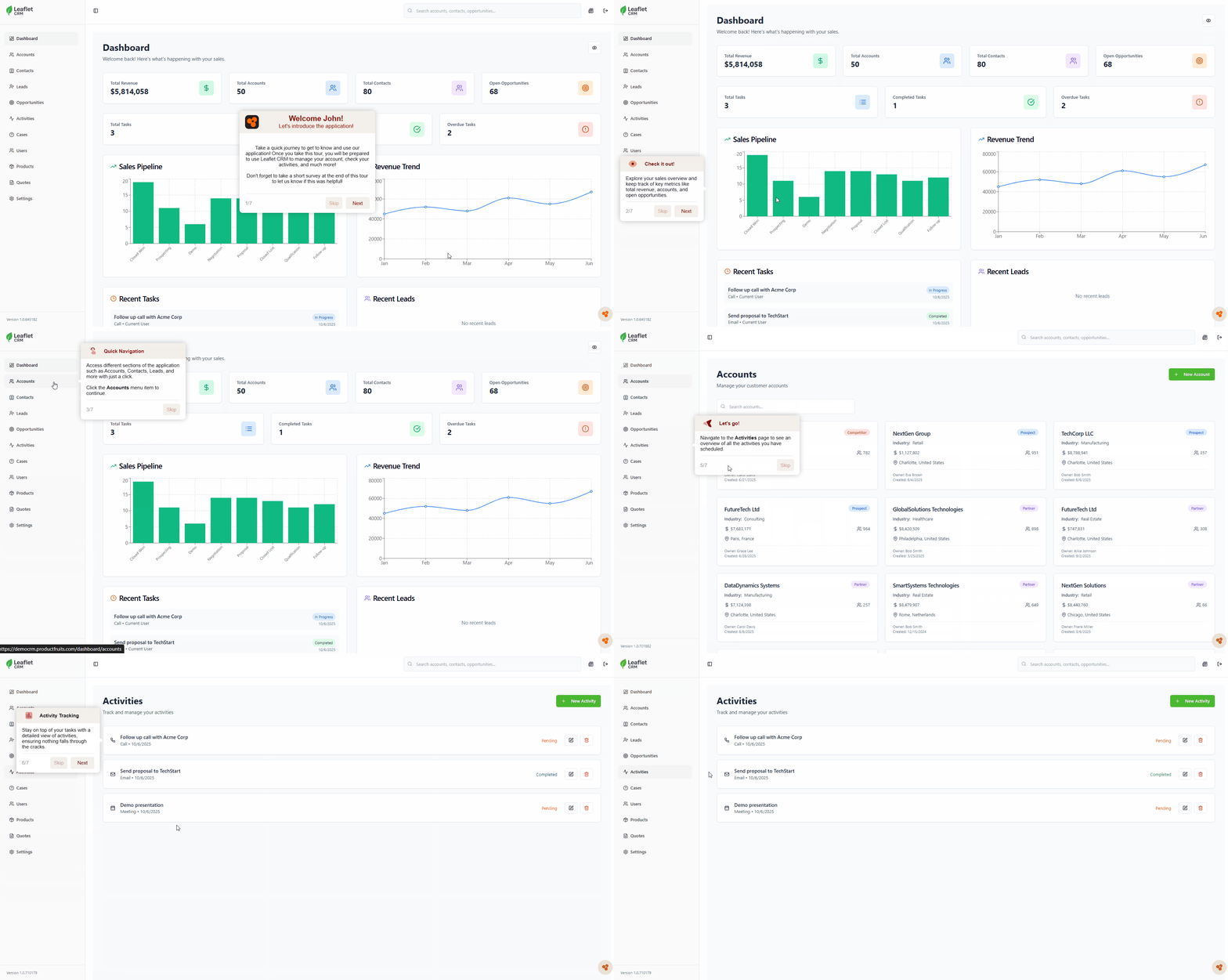
 Tip: How do you make sure content for first-time users is actually displayed for them? Use user properties and segmentation! Sending us the signUpAt user property is very useful to segment users depending on their sign-up date.
Interactive Guides
Selecting Dropdown Elements
First-time users will frequently need to fill out forms, complete their signup, and explore their new environment. Product Fruits' tours can seamlessly convey the information they need to understand your application, while guiding them along in their journey.
You can guide your users to fill out forms or interact with page elements with tours, here are a few examples to try:
<select> dropdown cannot be selected with the editor once expanded.
 Try it out!
<div> dropdown with "On Hover" advance action.
 Try it out!
 Note: The "On Hover" advance action is not enabled by default. Contact us to try it out!
Tour Card Detached Method
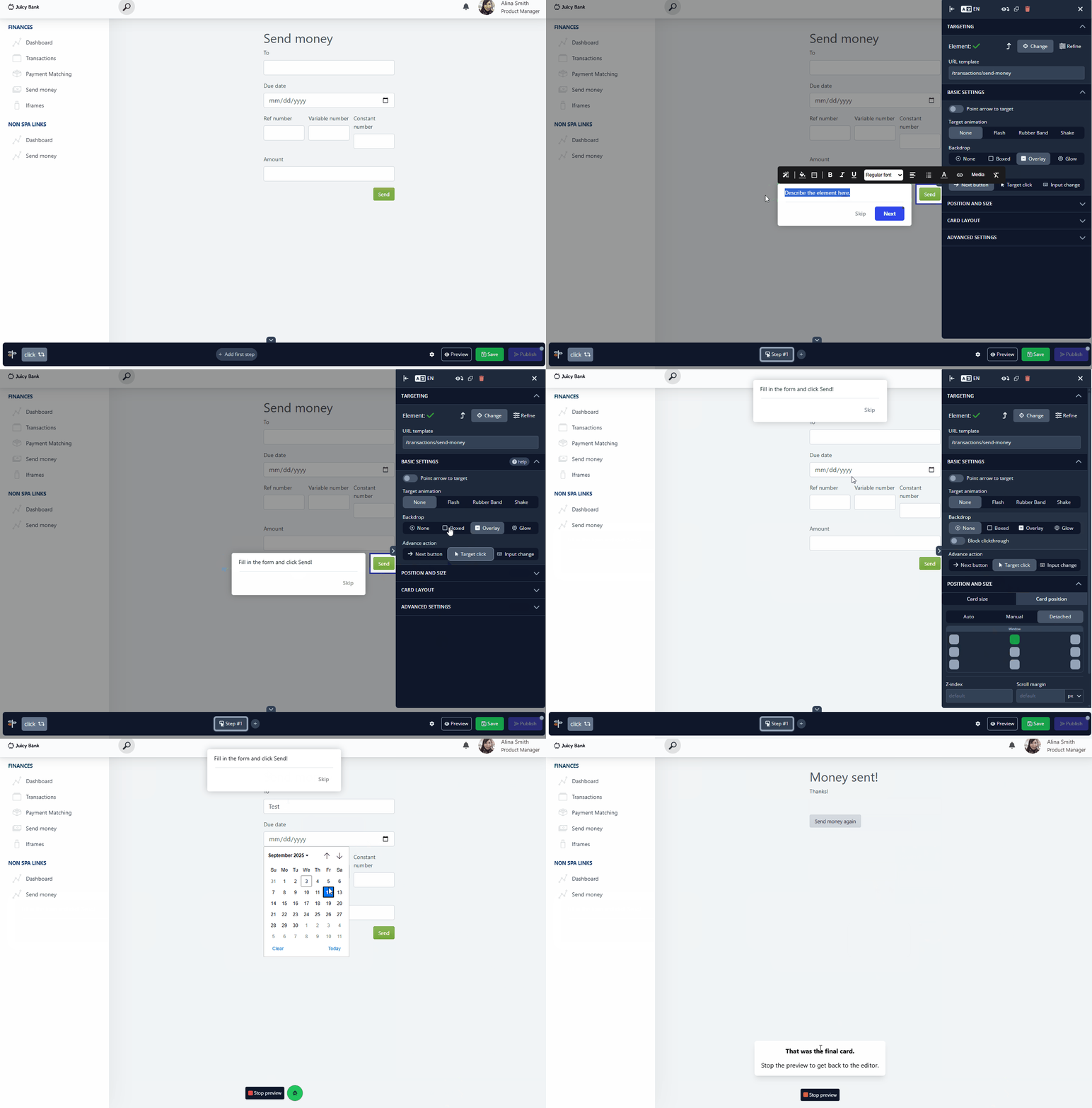
Detaching the tour card can be useful when you want your users to freely explore a page, interact with the content, then continue the tour when they are ready. This method can be useful for forms, canvases, or pages with complicated designs that cater to free exploration.
 Try it out!
Example content to interact with!
- Create a
tour card and select your "Submit" button or similar.
- Change the settings in the editor:
- Change the Advance Action to
- Remove
- Detach the tour card and adjust the positioning
- Test to make sure its working properly!

Strict Guidance Method
You can also guide the user step-by-step through a form. This is only recommended for very important forms and situations. Each part of the form can be targeted and explained to ensure your users understand and everything is done properly.
 Try it out!
Introduce New Features
When creating tours to introduce new features on your platform, keep them short and to-the-point to avoid losing users' interest. You can easily guide your users around the application, navigate between pages, and instruct them on how to navigate to different parts of your application themselves.
Multipage Tours - Self-guided
Try it out!Tours can navigate smoothly between URLs and pages in your platform. Use the "Target Click" advance action here to allow the user to navigate your platform while being guided by the tour. This method is effective for showing users how to get to places in your application by themselves, as they will be executing the actual clicks to get there.
Multipage Tours - Linking pages
 Try it out!
Need to guide users somewhere else in your application quickly? Tours can be linked between pages with custom buttons. This method allows users to quickly jump between URLs and effectively learn about many pages in your application. This is also useful for linking outside of your application or to hidden pages.
Tip: Linking to dynamic URLs? You can use specific placeholders instead of dynamic! More information on multipage tour setups can be found in our Knowledge Base!
In-app Tutorials
On Element Click
Do you know how we're launching our example use-case tours?
We're launching them on element click! If your element has some unique ID, you can launch a tour from it.
This is useful when you want users to click buttons, menu items, or other elements that are built-into the page.
This time, you can try it out with different elements:
Note: Launching tours on element click is not enabled by default. Contact us to try it out!
Branching Tours
 Try it out!
Using custom buttons in tours can open up many options for your users to choose from. For example, some users may not have the patience or need to go through entire onboarding or new feature tours so it's useful to give these users different options.
By using multiple tours and linking them together, you can "branch" your tours depending on the needs of your users and their own preferences.
Launching Content from other Tours
 Try it out!
Other content can be seamlessly integrated into Product Fruits tours to show your users how to access them. The lifering button, feedback widget, and surveys can all be launched with custom buttons from tours.
Using custom buttons in tours can open up many customization options for your Product Fruits content. These buttons allow you to add additional functionality to the tour cards, as well as tailoring the design for your use-case and client needs.
Check out some example tours with customs buttons added!
 Example 1
 Example 2